Manually entering ingredients
Last updated: June 25, 2026
Build a product’s ingredient list by hand when you can’t scan or photograph the label.
Overview
When you can’t scan a barcode or get a clear photo, you can build the ingredients list yourself by searching GreenCheck’s ingredient library.
Open manual entry
From the “couldn’t find that barcode” screen, tap Enter manually.
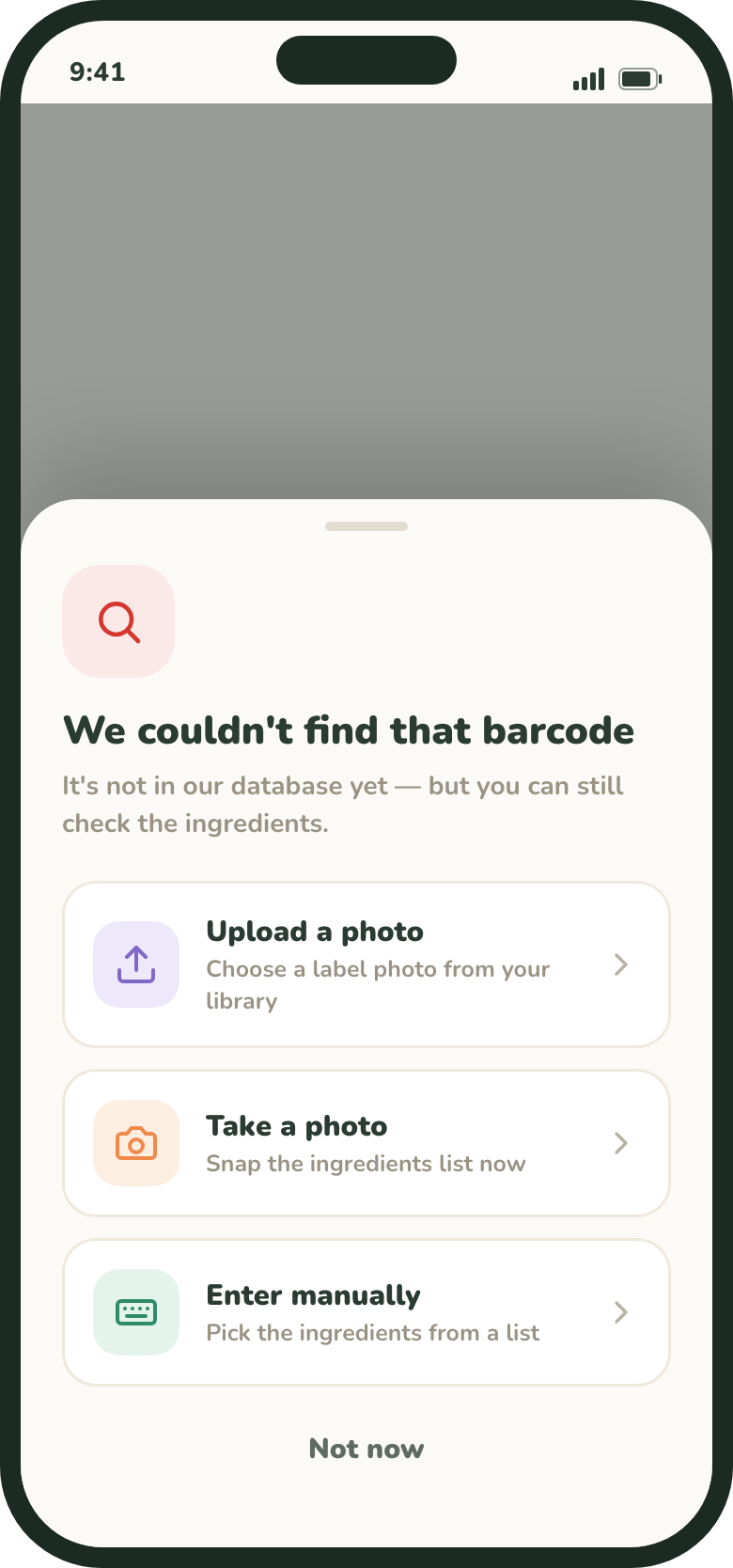
Add the ingredients
- 1Search the ingredient libraryStart typing an ingredient from the package — for example “milk” or “soy lecithin” — and tap the matches.
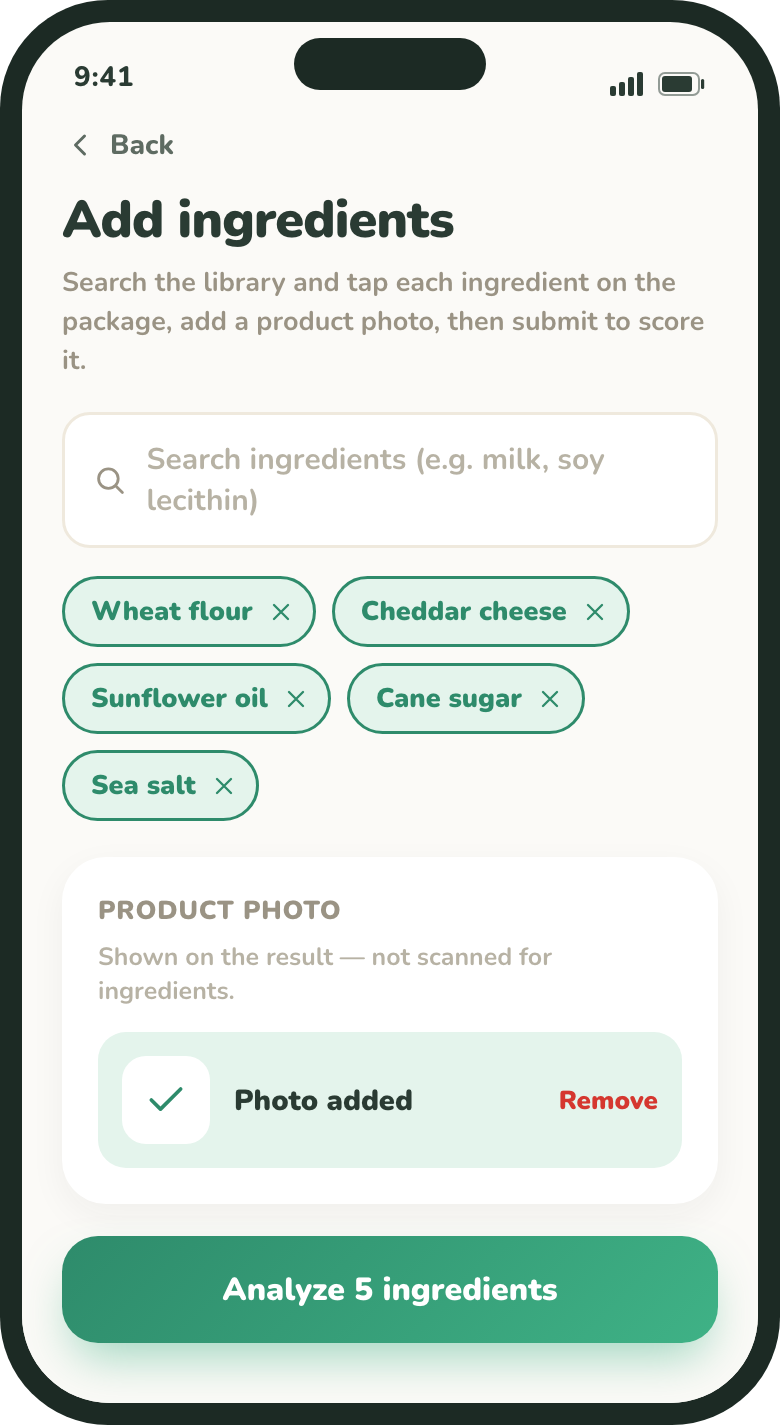
Search the library and tap each ingredient to add it. - 2Tap to add, tap × to removeEach ingredient you add appears as a chip. Add every ingredient you can read on the label; tap the × on a chip to remove one.
Don’t forget the “Contains:” line. If the label has an advisory like “Contains: milk, soy,” add those too so allergens are caught.
Add a product photo
A clear product photo is required. It’s shown on the result so you can recognize the item later — it isn’t scanned for ingredients. Tap Take photo or Upload to add one.
Analyze
Once you’ve added the ingredients and a photo, tap Analyze ingredients. GreenCheck grades the product for each child, exactly like a scan. See How scoring happens.