Adding children and setting up their profile
Last updated: June 25, 2026
Create a profile for each child with their allergies, conditions, and diet preferences so every scan is personalized.
OverviewAdd a childSet allergies — the Big 9Add medical conditionsSet diet preferencesEdit or remove a child
Overview
GreenCheck grades food for the specific kids in your family. The more accurate each profile, the more useful every scan. You can add up to 10 children.
Add a child
- 1Open the formYou’ll set up your first child during onboarding. To add more later, go to the Profile tab and tap Add child.
- 2Name and avatarEnter a name or nickname, then pick an avatar color or tap the avatar to add a photo.
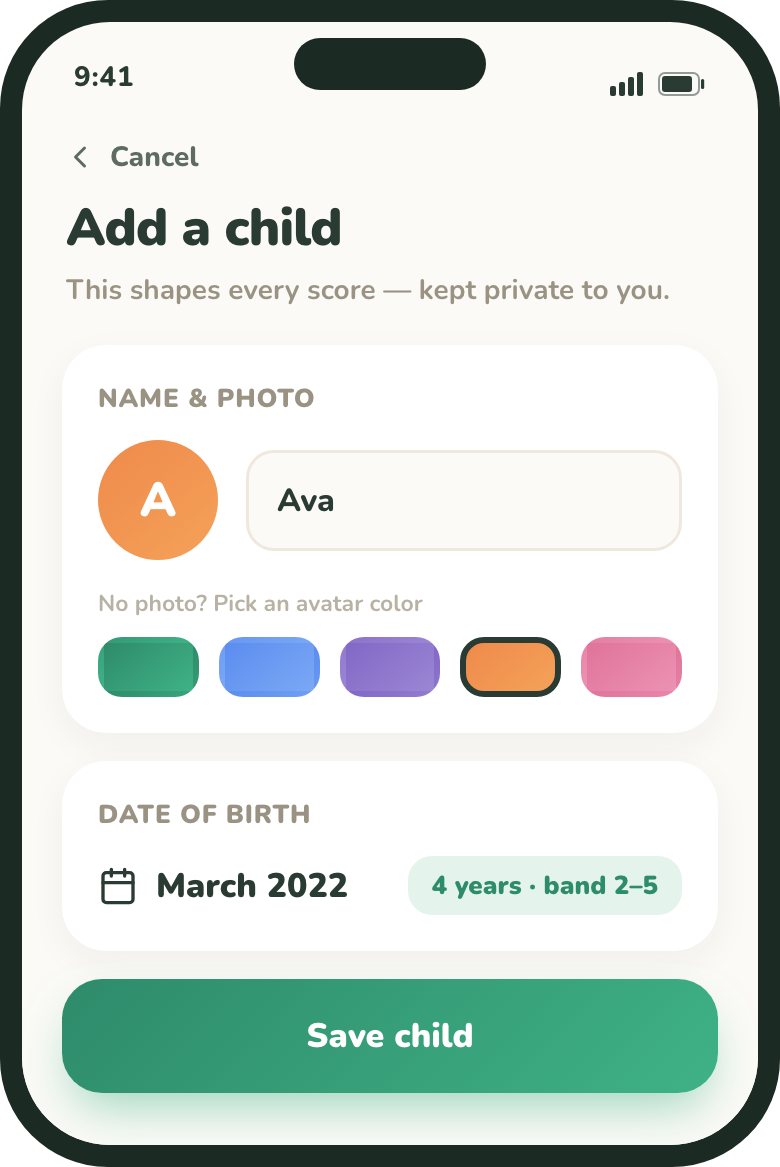
Name, photo or avatar color, and birthdate. - 3Set the birthdateTap Set birthdate and choose the month and year. GreenCheck uses age for age-specific rules (like honey under 12 months).
Set allergies — the Big 9
GreenCheck covers the nine major allergens: milk, egg, peanut, tree nut, wheat/gluten, soy, fish, shellfish, and sesame.
- 1Tap to add, tap again for severityTap an allergen to add it. Tap it again to cycle the severity: Mild → Moderate → Severe → off.
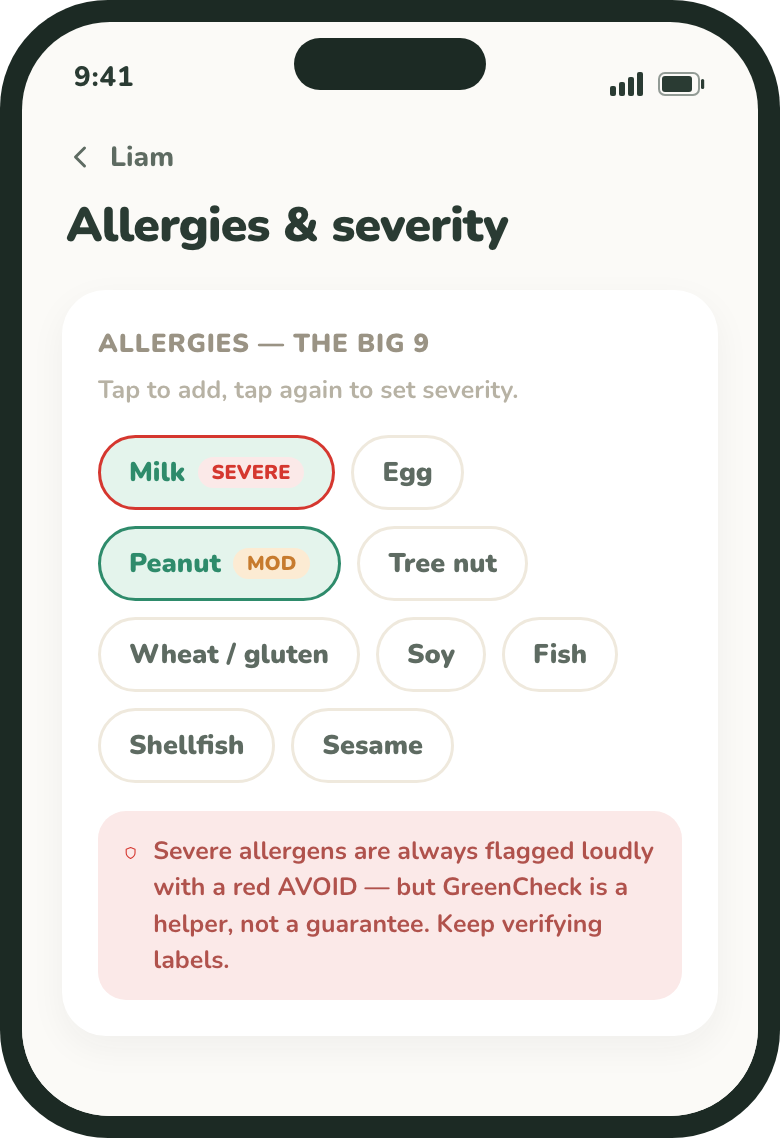
Tap to add an allergen; tap again to set Mild, Moderate, or Severe.
Any allergen you add — at any severity — makes a matching product AVOID for that child.
Add medical conditions
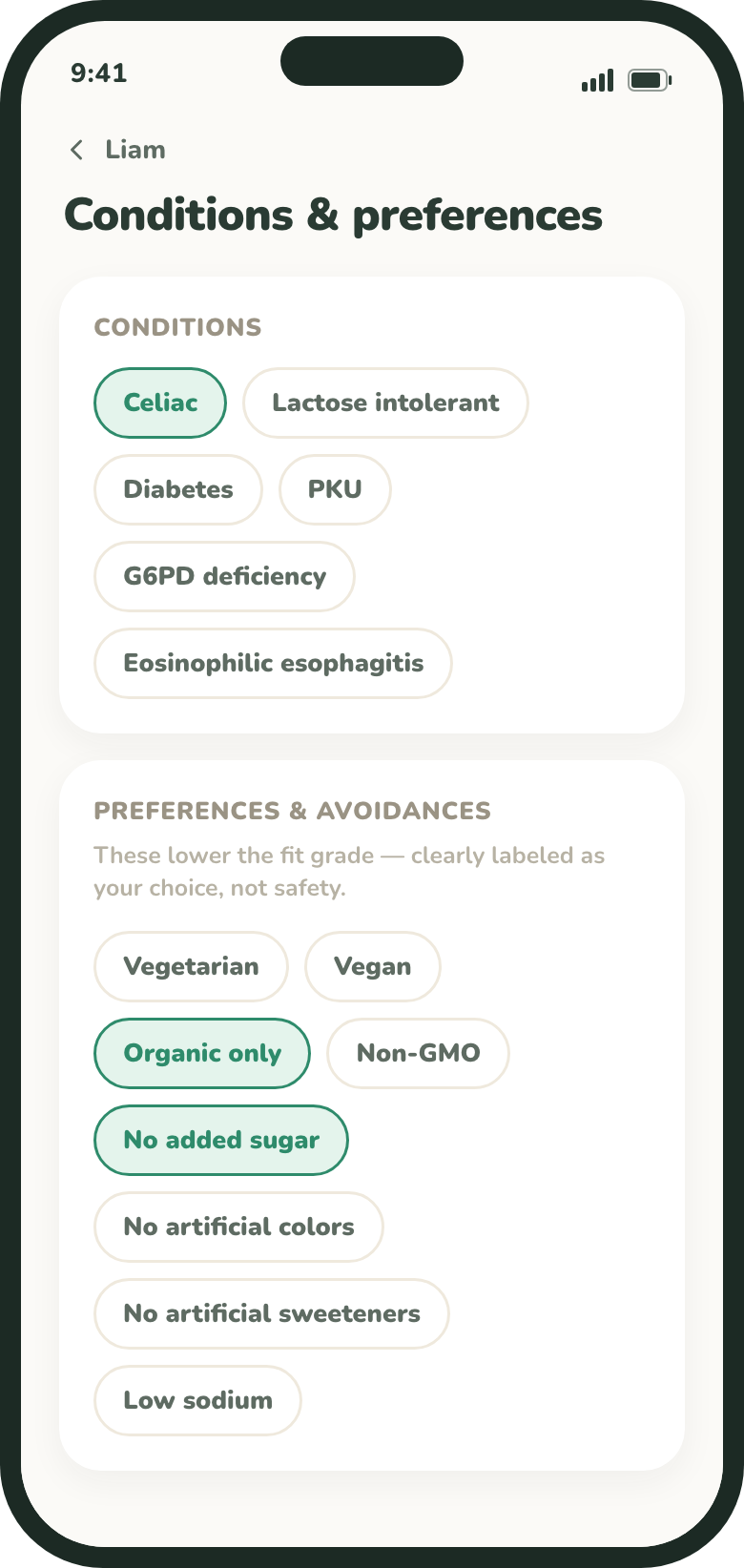
Conditions add their own hard blocks on top of allergies. GreenCheck supports:
- Celiac — blocks wheat/gluten, barley, rye, malt, and oats.
- Lactose intolerant — blocks milk.
- Diabetes — flags very high-sugar products.
- PKU — blocks aspartame and phenylalanine.
- G6PD deficiency — blocks fava beans and certain additives.
- Eosinophilic esophagitis (EoE) — flags the major allergens.
Set diet preferences
Preferences include vegetarian, vegan, organic only, non-GMO, no added sugar, no artificial colors, no artificial sweeteners, and low sodium.
Edit or remove a child
Open the Profile tab and tap a child to edit their details or delete the profile. Changes apply to future scans. For how this data is stored, see our Privacy Policy.